
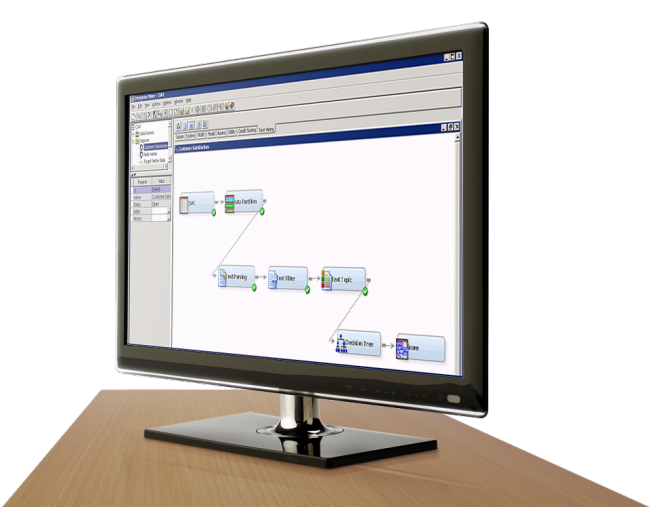
SAS® Text Miner
Text mining software for faster, deeper insight from unstructured data.
Our text mining software lets you easily analyze text data from the web, comment fields, books and other text sources. So, why limit yourself to analyzing legacy data? Deepen your understanding by discovering new information, topics and term relationships. And add what you learn to your models to improve lift and performance.
Benefits
Improve model performance.
Predictive models use situational knowledge to describe future scenarios. Yet important circumstances and events described in comment fields, notes, reports, inquiries, web commentaries, etc., aren’t captured in structured fields that can be analyzed easily. With our text mining software, you can add insights from text-based sources to your models for more predictive power.
Add subject-matter expertise.
Guide machine-learning results by using interactive GUIs to easily identify relevance, modify algorithms, document assignments and group materials into meaningful aggregates. Extend text mining beyond basic start-and-stop lists by using custom entities and term trend discovery to refine automatically generated rules and topics.
Automatically know more.
Automate time-consuming manual activities, such as theme extraction or key term relationships, using machine learning and natural language processing techniques. High-performance procedures let you run evaluations in minutes or seconds – even for large collections – so you can quickly discover essential elements that improve model lift.
Determine what's hot and what's not.
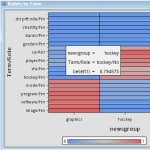
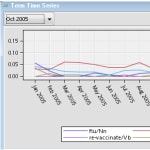
Text is structured into numeric representations that summarize document collections and become inputs to predictive and data mining modeling techniques. Using the same visual environment as SAS Enterprise Miner, you can easily examine key topics, identify highly related phrases and observe how terms change over time – so you'll know what to include for better results.
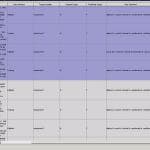
Screenshots

Features
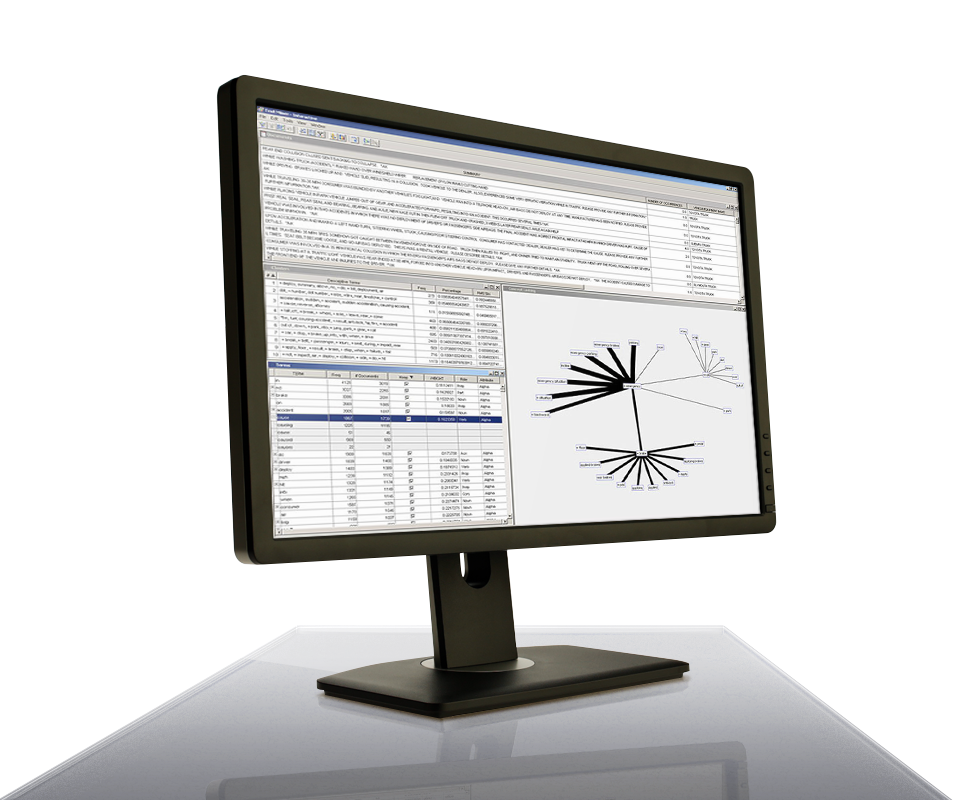
- High-performance text mining. Quickly evaluate larger document collections using high-performance text mining procedures.
- User-friendly, flexible interface. Text data processing interface conforms to Windows accessibility standards.
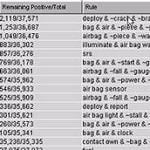
- Automatic Boolean rule generation. Easily classify content.
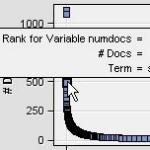
- Term profiling and trending. Evaluate the relevance of terms in a collection and understand usage trends over time.
- Document theme discovery. Identify themes in document collections with integrated document filtering capabilities.
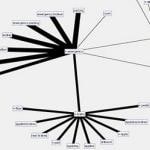
- Visual interrogation of results. Analyze results visually, easily explore relationships between terms and communicate results.
- Flexible entity options. Choose pre-defined entities, define your own or create custom entities for fact and event extraction.
- Easy text importing. Easily import any text document using an interactive interface.
- Native support for multiple languages. Select which languages to include based on a pre-defined input variable.